What Methods are Available to Recover Data from Corrupted SQL Database?
If you are unable to access data in SQL database, encounter errors while running queries, or find the database stuck in suspect mode, these are the clear signs of corruption. However, there are other symptoms as well, like “fail to open the database”, “missing or damaged tables”, or “fail to create backup on the database”. In this article, we will discuss the most effective methods to recover data from a corrupted SQL database.
Possible Causes of Corruption in SQL Database
A SQL database can get corrupt due to one or more of the following reasons:
- Hardware issues on the system where your database file is saved.
- Bad sectors on disk, faulty RAM, or sudden power failure.
- Software issues like bugs in SQL server instance, etc. or forced termination of SQL services.
- Virus or malware attacks on the system where your database files are located.
- Accidental deletion of transactional log file from the backend.
How to Check Corruption in SQL Database?
Following are the methods to check and detect corruption in SQL database:
• Check SQL Server Agent Alert
You can open the SQL Server Agent alert and check its event reports to confirm corruption-based issues in your SQL database. Errors 823, 824, and 825 indicate integrity issues.
To check this, in your SQL Server instance, under Object Explorer, click SQL Server Agent, and go to Reports > Standard reports > Job Steps Execution History.
- Run DBCC CHECKDB
You can run the DBCC CHECKDB command on the specific database. When you execute this command, it internally runs multiple checks to detect issues. Here’s how to use it:
DBCC CHECKDB ([JohnCompanyDB])

Top Methods Available to Recover Corrupt SQL Database
Here are some methods you can try to repair and recover data from SQL database.
• Restore from Backup
If a readable backup file is available, your SQL data remains safe and recoverable in case of corruption. To restore .bak file, ensure you have the required permissions. Also, verify the backup file’s integrity. Here are the steps to restore backup in SQL Server:
- Connect to SQL Server instance and then go to Object Explorer.
- Right-click on Databases and select Restore Database.

- In the Restore Database window, under General, select the database you want to restore from the source option.
- Then, select the destination. Click OK.

- After this, the restore process starts. You will see the completion message when the backup is restored.

Alternatively, you can restore the database from backup by using the T-SQL queries (see the below example):
RESTORE DATABASE [JohnCompanyDB]
FROM DISK = ‘D:\SQLBackups\JohnCompanyDB.bak’
WITH REPLACE,
RECOVERY;
- Use the DBCC CHECKDB Command
If the backup is not available, then you can use the DBCC CHECKDB command – a built-in tool to repair the corrupt database. If there is a minor issue in the database, then it is the most preferred option. However, if your database is highly damaged, then it may fail to respond or cause data loss.
Let’s look at DBCC CHECKDB usage through two scenario-based examples — one for minor corruption and one for major corruption.
Note: First, change the state of the database to SINGLE_USER mode.

1. Using CHECKDB Command for Minor Corruption
If the DBCC CHECKDB command or other methods report small issues in the database, like missing indexes, or minor structural or consistency issues, then here is how to repair it.
Run DBCC CHECKDB with REPAIR_REBUILD option.
For example,
DBCC CHECKDB (‘ JohnCompanyDB’, REPAIR_REBUILD);
This option rebuilds the indexes in the database and helps resolve minor problems. And also, it does not cause data loss.
2. Use DBCC CHECKDB to Resolve Major Corruption in SQL Database
If you found the corruption errors related to tables or allocation structures in the SQL database, then you can use the REPAIR_ALLOW_DATA_LOSS option with the DBCC CHECKDB command.
For example,
DBCC CHECKDB (‘ JohnCompanyDB ‘, REPAIR_ALLOW_DATA_LOSS);
Note: It reallocates the data in database while repairing. So, it does not guarantee complete integrity.
After repairing the database, change its state to Multi-User.
An Alternative Solution – Use a Professional SQL Repair Tool
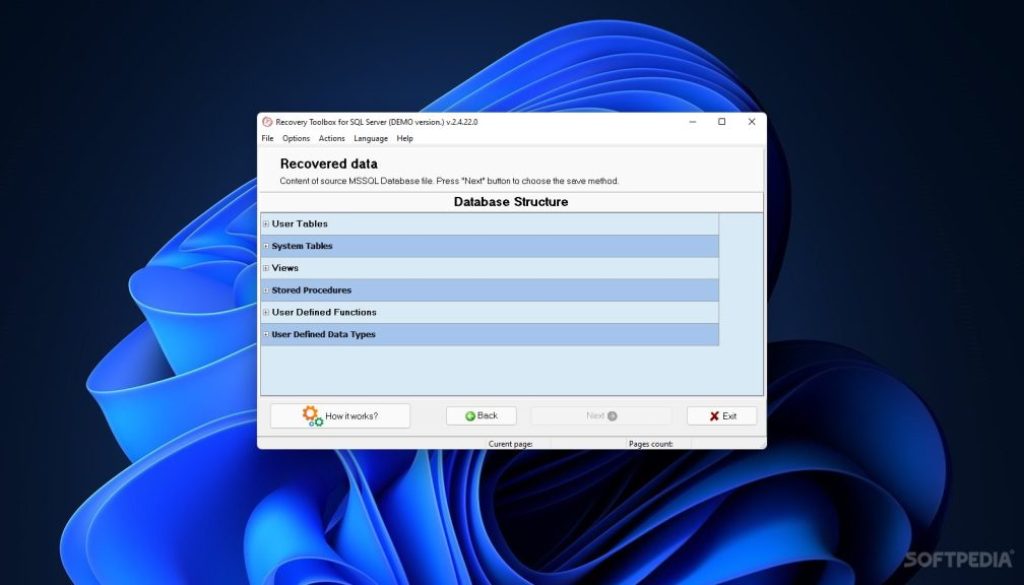
You can quickly resolve corruption issues in the SQL database without any data loss using a professional SQL repair tool, like Stellar Repair for MS SQL. With this tool, you can shorten database recovery time. Also, it helps you repair databases of any version of SQL Server, of any size, or in any state. After repair, you can export the recovered data to new database or other multiple formats. It can repair MDF/NDF files and allows recovery of corrupt data from them with complete precision.
Conclusion
Above, we’ve explained the top methods available to repair and restore corrupt SQL database. You can restore it from backup file if available or use the DBCC CHECKDB command to repair the database. But this command can safely repair only minorly corrupted database files. However for severe corruption in SQL file, you can use third-party SQL recovery tools, such as Stellar Repair for MS SQL that can help you restore the database without data loss.
Stay in touch to get more updates & news on Technmagazine!